
Docker Push Image to Remote Registry Made EASY - 5-Minute!
Let's explore the step-by-step guide for pushing the Docker image to remote registries, this comprehensive guide on "Docker Push Image to Remote Registry".
Kashyap Merai / / docker · 6 min read

Let’s explore the step-by-step guide for pushing the Docker image to remote registries, this comprehensive guide on “Docker Push Image to Remote Registry” provides the latest information and steps to effectively push images to remote registries and share your image across the team.
Understanding Docker Image Registry
The Docker image registry is the library for all your container images in a central place that allows you to store, manage, and share them.
Your Docker images are like the blueprint for your application that includes all the dependencies and application code. There are two kinds of registries:
Local Docker Registry
Local Docker registry is default and always available in the local environment. When you run the docker build command it will build the image and store it on the local Docker registry. It’s quick and convenient but limited to your local environment.
You can list your local Docker images with this command:
docker image ls

# List of local Docker registy images
REPOSITORY          TAG       IMAGE ID       CREATED         SIZE
nginx               latest    2f5f2e4cd1a1   2 weeks ago     133MB
alpine              latest    28f6e2705743   4 weeks ago     5.61MB
nicolaka/netshoot   latest    4385a1e0c55d   7 months ago    245MB
Advantages of Remote Registry
The local registry is convenient but limited to sharing across the environment and teams, that’s where the Remote registries come to the rescue.
Sharing: You can push images to the remote registry, share them with the teams, and deploy them in the production environment.
Version Control: Track different versions of your Docker images same as code! Easy to manage and roll back to the previous version.
Scalability: The Registry stores your Docker image and application code, that needs large storage. Remote registries can handle large images efficiently.
Master Docker Security - Without the Guesswork
Get the exact steps top engineers use to secure production containers. 100% free.

Popular Remote Registry Options
Docker HUB
Docker HUB is the official Docker public image registry that is fast and efficient. You can use Docker HUB to host your Docker Images for free, but since it’s a public registry, all your images will be visible to everyone.
Docker HUB also offers a huge collection of pre-build images of the most popular software. For example: you can find the MYSQL DB Docker image here
https://hub.docker.com/_/mysql
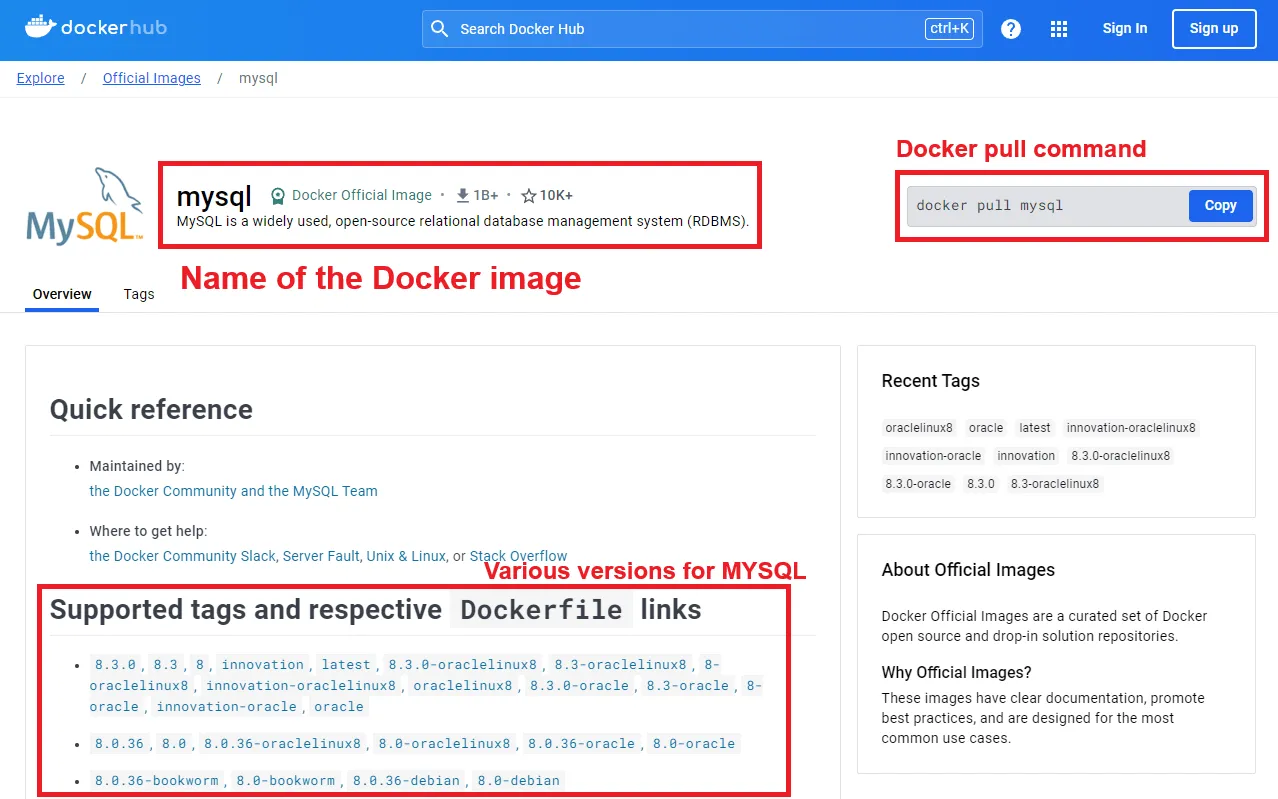
Docker Push Image to Remote Registry DockerHub
Private Registries ( Self-hosted or Cloud-based )
You can use the private registries for your private and sensitive applications. Private registries offer more control over your Docker image such as scanning for security issues, lifecycle policy, and security control.
Let’s say you have the Python application you can build an image and push it to the private registry. Later you can share it with your team to access and deploy the application.
Prepare: Tagging Your Image
You must ensure the correct tag and identification before Docker pushes the image to the remote registry. Docker push image to the remote registry follows the naming convention as the Docker container naming convention:
<username>/<repository-name>:<tag><username>: Your DockerHub or private registries username<repository-name>: Name of your image. eg: “python-web-app”<tag>: Optional but highly recommended, it’s like version number. eg: “v1.0”
To prepare and tag the Docker image you can use the docker tag command:
docker tag <local-image-name> <username>/<repository-name>:<tag>Let’s tag the locally built image “python-web-app” for pushing to the Docker Hub account:
docker tag python-web-app devtodevops/python-web-app:latestOnce you prepare your Docker image, let’s check “Docker push image to remote registry”.
Docker Security Checklist + Guide
Practical, proven strategies to secure your containers like a pro - in under 20 minutes.
Push: Image to Remote Registry
Now that your image is ready and tagged, let’s push it!
Authentication with Remote Registry
You must authenticate and log in using your credentials for both Docker Hub and private registries. You can use the docker login command:
docker login <registry-url>Replace the <registry-url> with your actual registry address hub.docker.com or similar. When you run the command, Docker will ask for the username and password to authenticate.
Secure Credential Handling
When you use STDIN or script it stores the password in plain text which is not good practice to store. You can store Docker credentials securely using the external credential store.
You can use the official Docker helper docker-credential-helpers:
Apple macOS keychain
Microsoft Windows Credential Manager
Push Docker Image
After the successful authentication, you can use the docker push command to initiate the process:
docker push <username>/<repository-name>:<tag>On running the command you will see the progress of the upload status. The actual upload size will be smaller due to compression.
You can also use additional flag -v with docker push to see detailed logs:
docker push -v <username>/<repository-name>:<tag>Troubleshoot Common Push Error
If you follow this guide, pushing the Docker image to the remote registry is straightforward. Here are some common issues and solutions for the troubleshooting:
1. Authentication Error
Double-check your login details such as username, password, and registry URL for spelling or typo errors. Check you’re logged in to the correct registry.
2. Authorization Error
Verify that your account has the necessary permission to push the image. You have login permission with the correct credentials but the permission is not provided.
3. Image Not Found Error
This error indicated that you might have a mistake in a typo with the Docker image or tag during the docker tag command. Your locally built image name must match the one you’re pushing to the remote registry.
4. Connectivity Issues
Check your network connectivity and internet connection. If you’re behind the Firewall, please check the necessary settings to allow or use a proxy server.
Verify: Docker Push Image to Remote Registry
You can optionally verify the Docker push image to remote registry in the below ways:
Check Image with Remote Registry
Docker Hub: Login to your Docker Hub account and search for the specific image you pushed. You can see the pushed image along with the version and other details.
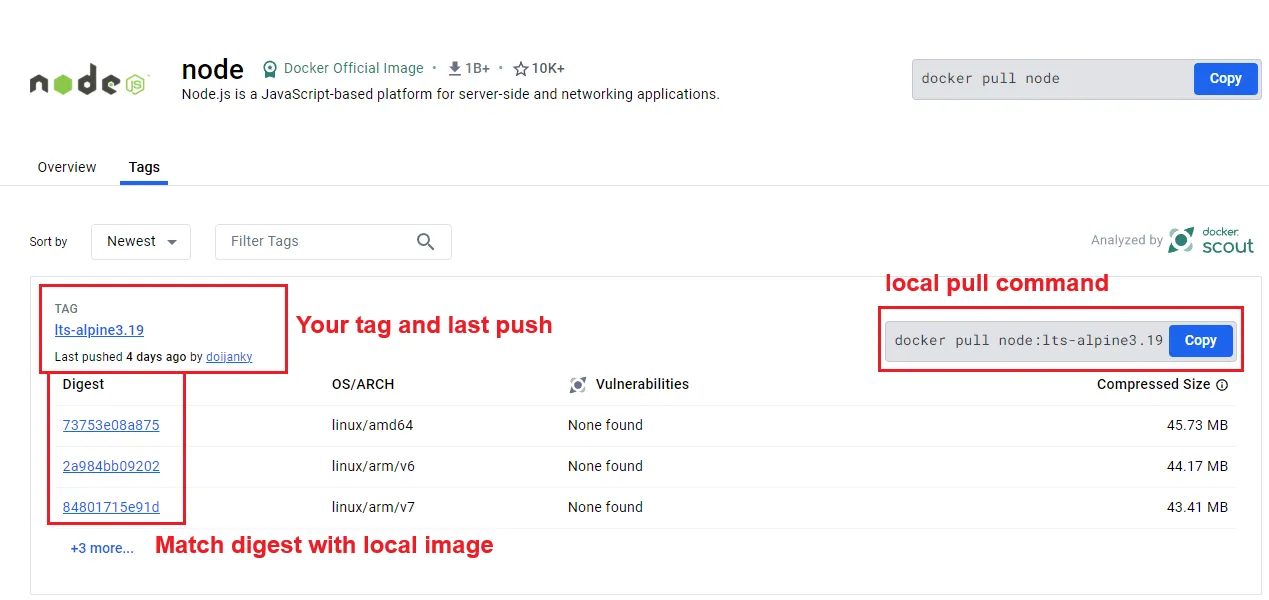
Docker Push Image to Remote Registry Verify
You can match your local image digest and tag with the Docker Hub.
Pull the Pushed Image for Testing
You can pull the pushed image back to your local registry for testing:
docker pull <username>/<repository-name>:<tag>Once it’s pulled you can check with docker image ls and optionally you can run the same image to check everything is working fine.

Conclusion
Docker push to remote registry provides several benefits:
- Share your image across the team and provide the pre-built Docker image for a seamless development experience.
- Keep your Docker image safe and secure by scanning for known vulnerabilities.
- Easily deeply containerized application with integrating private registries.
You can check the Docker Container Naming Convention Best Practices and Docker Container Security Cheatsheet: Don’t Get Hacked to keep your Docker container secure and follow the best practices.

Kashyap Merai, a Certified Solution Architect and Public Cloud Specialist with over 8 years in IT. He helped startups in Real Estate, Media Streaming, and On-Demand industries launch successful public cloud projects.
Passionate about Space, Science, and Computers. He also mentors aspiring cloud engineers, shaping the industry's future.
Connect with him on LinkedIn to stay updated on cloud innovations.