Most Accurate Fix - No Space Left On Device In Docker
Docker doesn't clear things up on its own even if it's unused, and this causes the common error: "No Space Left On Device". Best Practices: Cron & Log Rotation
Kashyap Merai / / docker · 9 min read
Creating a Docker container is easy to set up and use. However, this simplicity leads to unused docker images and stopped containers on Host.
Docker doesn’t clear things up on its own even if it’s unused, and this causes the common error: “No Space Left On Device”.
Let’s explore the cause of this error, understand how to fix it step by step, and discuss best practices for avoiding this in the first place.
Causes of “No Space Left on Device” in Docker
Container and Image Storage
Docker uses a storage drive for storing the image layers and a writable layer ( container layer ) for a container. Multiple containers can share the same image layers but have their writable container layer.
Docker containers generate all these layers. Unnecessary or unused containers and images can accumulate and consume significant disk space over the period.
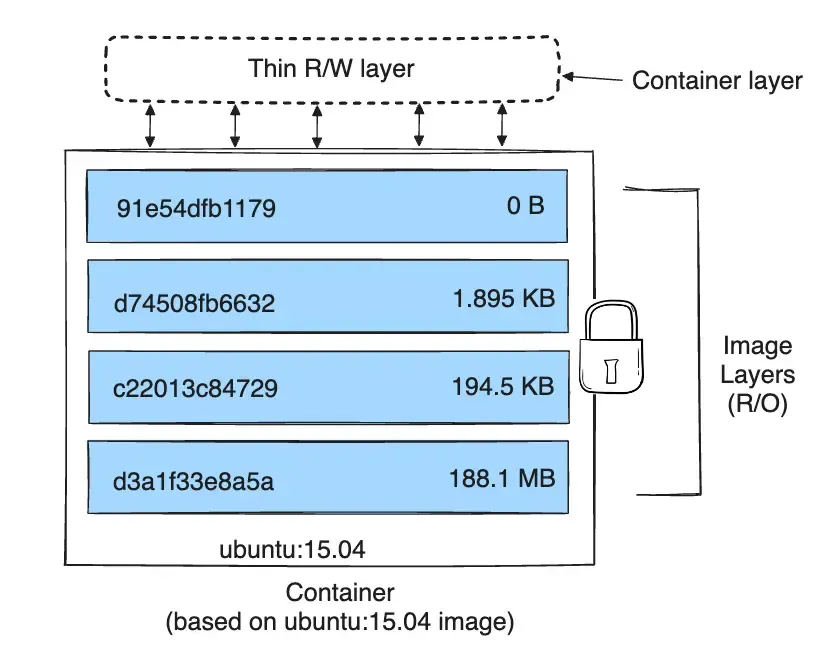
Source: https://docs.docker.com/storage/storagedriver/
Where do containers take up disk space?
- Large container log files if log rotation is not configured.
- Temporary files generated by application.
- Swap memory that is written to disk.
- Volume and bind mounts used by the containers.
Docker Security Checklist + Guide
Practical, proven strategies to secure your containers like a pro - in under 20 minutes.
Step-by-Step Guide to Fixing “No Space Left on Device”
Docker Container Cleanup
Removing an unused or stopped container will help to reclaim the disk space. You can either remove a specific container or remove all stopped containers. We can use the docker container prune to remove it.
Remove a Specific Container
Use the docker rm command with container ID or name to remove a specific container.
docker rm python-appRemove All Stopped Containers
To remove all stopped containers, you can use the docker container prune
docker container pruneDocker Image Cleanup
Cleaning Docker images involves removing unused and unnecessary images from your machine. This will free up disk space. We can use docker image prune can use docker image prune to remove it.) to remove it.
Remove a Specific Image
Use the docker rmi command with image ID or name to remove a specific image:
docker rmi python:latestRemove Dangling Images
To remove all daggling images that are not associated with any container, use docker image prune command:
docker image pruneRemove All Unused and Daggling Images
To remove all images without at least one container associated with them both unused and daggling docker image prune -af command:
docker imge prune -afDocker Volume Cleanup
A Docker volume used by a stopped or unnecessary container can still occupy the space. We can use docker volume prune to remove it.
Remove Specific Volume
Use the docker volume rm command with volume ID or name to remove a specific volume:
docker volume rm python_volumeRemove All Unused Volumes
To remove all volumes not associated with any containers, you can use docker volume prune command:
docker volume pruneManually Delete Volume Data on the Host
If you want to delete the data stored in a volume manually ( not recommended ), you can find the volume location on the host and use the file remove command.
Find the volume path on the host:
docker volume inspect python_volume -f '{{ .Mountpoint }}'Remove the data manually:
rm -rf /var/lib/docker/volumnes/python_volume/_data
All Docker Objects Cleanup
So far we’ve cleaned the container, images, and volume individually. Docker provides a convenient way- system prune to handle all the Docker objects cleanup using the system.
To remove all Docker objects, including containers, images, network, and build cache:
docker system prune -a

WARNING! This will remove:
        - all stopped containers
        - all networks not used by at least one container
        - all dangling images
        - unused build cache
By default, the docker system prune the command doesn’t remove any volumes to prevent the loss of data.
You can clean all Docker objects including volume:
docker system prune -a --volumes

WARNING! This will remove:
        - all stopped containers
        - all networks not used by at least one container
        - all anonymous volumes not used by at least one container
        - all images without at least one container associated to them
        - all build cache
Be careful when using this command, as it will remove all unused Docker objects, freeing up significant disk space.
Adjusting Docker Storage Driver
Docker provides different storage drivers such as overlay2, aufs, btrfs, and zfs. Each drive has its way of managing the layer and storage space.
Docker uses overlay2 as default driver is known for its efficiency and good performance. Switching to a different drive might help to resolve the no space left on the device.
aufs the storage drive is less performant compared to overlay2, but aufs efficiently shares the images between multiple running containers. This helps to have a fast container start time and minimal disk space usage.
You can check more on AUFS and Docker Performance.
Check your current Docker storage driver:
docker info | grep Storage

Storage Driver: overlay2
You can edit the default storage driver by editing the Docker daemon file /etc/docker/daemon.json. Be sure to back up the configuration before making any changes.
{
  "storage-driver": "aufs"
}
Restart the Docker daemon to apply changes:
sudo service docker restartAlways check the Official Docker documentation for up-to-date information.
Change the Default Docker Storage Location
Docker stores its data such as container setup configurations, network settings, images, and volume in a host machine known as Docker Root Directory.
In a Production environment, you can use a non-root file system or a larger disk to save all Docker storage data. This can help fix “No Space Left On Device” when the current storage location runs out of space.
Find the Current Docker Root Directory
You can check the current Docker root directory using the system info command:
docker info -f '{{ .DockerRootDir }}'

/var/lib/docker
Copy Existing Docker Data ( Optional )
Create the new directory for Docker storage:
mkdir -p /data/docker-dataYou a use rsync utility to sync existing Docker data to the new storage location:
sudo rsync -aP /var/lib/docker /data/docker-dataUpdate the Docker Storage Location
Edit the Docker daemon file /etc/docker/daemon.json and add the new directory path:
sudo nano /etc/docker/daemon.jsonModify the data-root key to point to a new storage location
cat /etc/docker/daemon.json

{
  "data-root": "/data/docker-data"
}
Restart the Docker service
sudo systemctl restart dockerOnce Docker is running you can verify the updated location:
docker info -f '{{ .DockerRootDir }}'

/data/docker-data
Resize and Expand the File System
Resizing the host file system is important when you need to expand the size of Docker Storage to fix no space left on the device error.
You can check the current disk usage:
df -hExpanding the root file system depends on specific Linux distributions. You can use traditional partition or Logical Volume Management (LVM).
Docker No Space Left on Device Mac
If you’re using a Mac OS and facing no space left on the device issue with Docker, consider removing the Docker.raw file.
Mac OS creates this file called Docker.raw for local Docker storage, and it starts to accumulate over time. You can find the file location by going below path:
Preferences > Resources > Advanced > Disk Image LocationYou can check the file size before deleting the Docker.raw file and restart the Docker for Mac. The file will be automatically created again but with a 0GB size.
Master Docker Security - Without the Guesswork
Get the exact steps top engineers use to secure production containers. 100% free.
Best Practices for Avoiding “No Space Left on Device” Errors
Regular Disk Space Monitoring
Regular monitoring helps to identify the disk space issue before it turns critical. The “No Space Left on Device” error can stop Docker operations, causing containers to fail or stopping new image pulls.
Implement monitoring tools like Prometheus and Grafana for complete Docker monitoring.
To check the Docker disk usage overview:
docker system df

TYPE            TOTAL     ACTIVE    SIZE      RECLAIMABLE
Images          3         2         236.7MB   42.58MB (17%)
Containers      2         1         1.093kB   1.093kB (100%)
Local Volumes   0         0         0B        0B
Build Cache     0         0         0B        0B
To check the overall system disk space:
df -h

Filesystem                Size      Used Available Use% Mounted on
overlay                  10.0G      1.7M     10.0G   0% /
tmpfs                    64.0M         0     64.0M   0% /dev
tmpfs                    15.7G         0     15.7G   0% /sys/fs/cgroup
/dev/sdb                 64.0G     38.5G     25.5G  60% /etc/resolv.conf
/dev/sdb                 64.0G     38.5G     25.5G  60% /etc/hostname
/dev/sdb                 64.0G     38.5G     25.5G  60% /etc/hosts
shm                      64.0M         0     64.0M   0% /dev/shm
/dev/sdb                 64.0G     38.5G     25.5G  60% /var/lib/docker
Once you set up the monitoring you can utilize the Docker event streaming to capture and trigger the low disk space alert with Prometheus Alertmanager.
Periodic Maintenance Tasks
All the steps in the step-by-step guide can be automated and run as a periodic maintenance task, ensuring unnecessary data such as stopped containers, unused images, and large log files clears up.
Cron Jobs for Docker Prunes
Schedule a cron job to run the docker system prune -f daily can help clean up disk space:
# Edit the crontab file
crontab -e

# Add the following line to run Docker prune every day at 5 AM
0 5 * * * /usr/bin/docker system prune -f
Log Rotation for Docker Containers
Excessive logs from the Docker container can cause a “No Space Left on Device” issue. Use log rotation to manage and limit the size of container logs.
# Create a logrotate configuration file for Docker containers
sudo nano /etc/logrotate.d/docker-containers

# Add the following configuration
/var/lib/docker/containers/*/*.log {
    rotate 7
    daily
    compress
    size=1M
    missingok
    delaycompress
    copytruncate
}
The above configuration sets up log rotation for Docker container logs. Limit each log file to 1MB and retain 7 rotated copies.
Image Optimization Strategies
Write your Dockerfile to use a minimal base image and combine the commands to reduce layer size. Use a Dockerfile linter - Hadolint to follow the best practices for Docker image building. Checkout out Hadolint: Comprehensive Guide to Lint Dockerfiles
You can also utilize multi-stage builds to create smaller final images. Checkout out Docker Build 39x Times Faster: Docker Build Cloud
Finally, use the Docker image scanning tools Clair and Trivy to find the vulnerabilities and misconfiguration. Check out the Docker Container Security Cheatsheet.
Volume Management Best Practices
Volume management is important for handling data persistence in Docker.
- Only create volume for data that requires persistence. You might need volume for the database to store user upload data.
- Use meaningful naming conventions for volume to identify and manage easily.
- Set up a periodic cron job to inspect the volume and clean up the unused volume.
- Define the lifecycle policy for the Docker volume. ( eg: cleaning up the unused volume every week )
Conclusion
In summary, we explore how to fix the Docker storage issue “No Space Left on Device”.
First, we identify how Docker containers use storage, then a step-by-step guide on various ways to fix the storage issue by removing unnecessary Docker containers, images, and volumes. Even if this doesn’t fix the issue we can use a manual to clean up the storage and resize the file system.
All the steps are for fixing the issue but following the best practice to set up monitoring and alerting to take proactive measures can prevent the issue from happening.

Kashyap Merai, a Certified Solution Architect and Public Cloud Specialist with over 8 years in IT. He helped startups in Real Estate, Media Streaming, and On-Demand industries launch successful public cloud projects.
Passionate about Space, Science, and Computers. He also mentors aspiring cloud engineers, shaping the industry's future.
Connect with him on LinkedIn to stay updated on cloud innovations.