Podman Attach to Running Container Bash: 3 Simple Methods
The "Podman Attach to Running Container Bash" trick is handy when troubleshooting an issue, inspecting the filesystem, or executing commands on container.
Kashyap Merai / / podman · 5 min read
Introduction: Podman Attach to Running Container Bash
Podman is a powerful container management tool for creating, managing, and running containers securely and efficiently.
Podman containers run in the background you as a developer want to check the application logs and debug or execute commands. The podman attach command is easy to use for this purpose. You can attach your terminal to a running container’s primary process and interact with it.
The “Podman Attach to Running Container Bash” trick is handy when troubleshooting an issue, inspecting the filesystem, or executing commands directly within the container.
Let’s explore the 3 best ways for “Podman Attach to Running Container Bash” with an example.
Additional Link: How to Attach and Detach From a Docker Container
Only Podman CheatSheet You'll Actually Use
Get the essential commands to manage containers faster - zero fluff, 100% useful.
Podman: How to Attach to a Running Container and Execute Bash
Before starting with the topic “Podman Attach to Running Container Bash”, ensure you’ve Podman installed and running. You can follow the official guide for installing the Podman:
https://podman.io/docs/installation
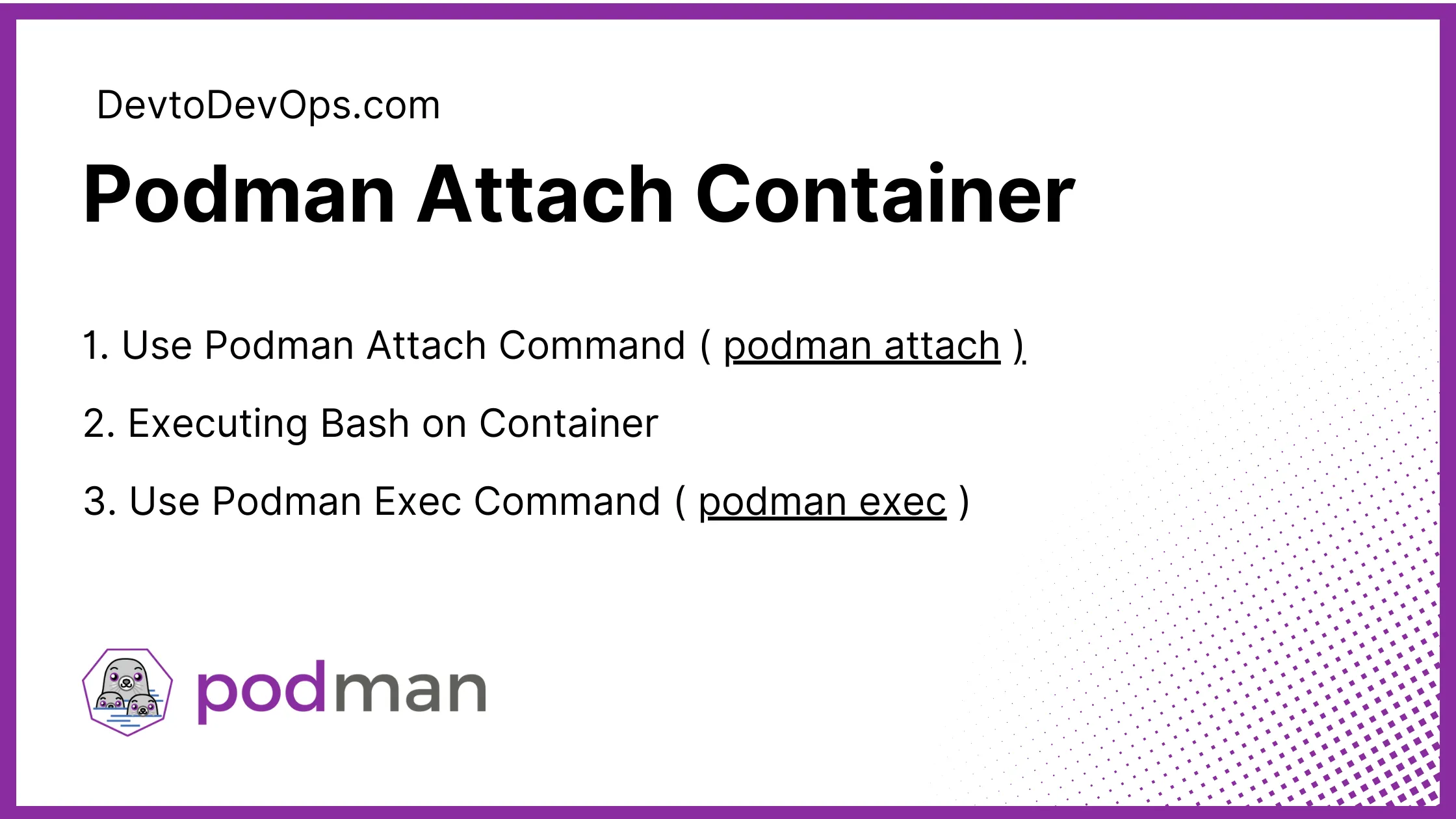
Podman Attach to Running Container Bash - 3 Simple Method
Method 1: Use Podman Attach Command
Let’s check how to use podman attach the command to attach to a running container. You should know the running container ID or name to attach the Bash.
You can list all the running containers using the podman ps command:
podman ps

CONTAINER ID   IMAGE         COMMAND     CREATED         STATUS       PORTS        NAMES
9f7a2d6c3e1f   my_image      bash         2 hours ago     Up and Running   5000/tcp   my_container
Similar to the Docker command output, you can get the Container ID 1234567890ab here.
Let’s attach the container using the podman attach:
podman attach 9f7a2d6c3e1f

root@my_container:/#  # This is the container's terminal prompt
This command will attach your terminal to the primary container process. You can now interact with the container’s shell and execute the commands.
TIP: How to detach from the Container?
Once you finished working with the container Bash you can press, Ctrl + p followed by Ctrl + q to detach from the container. This will end the session and bring you back to old terminal.
Syntax and Options for Attaching to a Running Container
The syntax for the podman attach is as follows:
podman attach [OPTIONS] <container_id_or_name>Some useful options:
--latest: Attach to the most recent container.--no-stdin: Prevent standard input (your keyboard) from being passed to the container.
Method 2: Executing Bash within a Running Container
Another way to access the container shell is by directly executing the Bash command within the container environment. Executing Bash within a running container is similar to using the podman attach but different flow.
For executing Bash within a running container, you can use the podman exec command. podman exec command allows you to run the command directly inside the container.
Let’s check how to execute the Bash within the running container:
podman exec -it <container-id-or-name> bashIn this example:
--itflag allows you to run an interactive mode terminalbashspecified the command to be executed, here it’s Bash Shell.
Let’s execute the Bash within a container named “my_container”:
podman exec -it my_container bashThis command will create a new session with Bash within the specified container, rather than attaching your terminal to the container’s main process.
You can run the interactive shell execute the commands and perform debugging tasks.
Method 3: Use Podman Exec Command
You can use both the above method podman attach and pod exec to access the container shell but you must understand the difference clearly and how this command operates.
The Difference Between podman attach and podman exec
| podman attach | Attach your terminal to the primary process of running container. |
|---|---|
| podman exec | Attach your terminal to the primary process of running the container. |
Podman Attach to Running Container Bash
Usecase for podman attach and podman exec
| podman attach | Suitable for interactive and continuous access to the container shell. |
|---|---|
| podman exec | Suitable for one-off commands & shell script execution |
Podman Attach to Running Container Bash
podman attach is more suitable for interactive use cases, you can have continuous access to the container shell.
podman exec is more suitable for executing commands or scripts within the container
Stop Googling Podman Commands
Grab the cheat sheet that gives you the right commands, right when you need them.
Tips & Troubleshooting: Podman Attach to Running Container Bash
Common Issues
If you face any issues when attaching to a container, ensure the container is running and you have the correct permission to access it.
You can only attach or execute the command on the running container.
Troubleshooting Steps
If you’re facing an issue and unable to attach to a container, try restarting the container and retry the podman attach. You can check the container logs for additional errors.
Best Practices
It’s good practice to avoid changing the container filesystem unless necessary. You can use the tools and scripts to perform various tasks within the container environment.
FAQs
How does Podman attach the terminal to the running container?
Podman attaches your terminal to a running container’s primary process using the podman attach command, followed by the container ID or name.
Example: podman attach <container-id>
How do I log into my Podman container?
You can log into your Podman container by executing a Bash session within the container’s environment using the podman exec command.
Example: podman exec -it <container-id> bash
How do I run a command inside a container in Podman?
Use the podman exec command followed by the container ID or name and the command you want to run within the container.
Example: podman exec -it <container-id> <command>

Conclusion
In this blog, we check various methods for “Podman Attach to Running Container Bash”. You can use any of the above methods either podman attached for interactive sessions or podman exec for the one-off command execution.
Podman provides options for managing and interacting with containers effectively. Using these methods you can debug the application and perform the various operations.
Additional Reading:

Kashyap Merai, a Certified Solution Architect and Public Cloud Specialist with over 8 years in IT. He helped startups in Real Estate, Media Streaming, and On-Demand industries launch successful public cloud projects.
Passionate about Space, Science, and Computers. He also mentors aspiring cloud engineers, shaping the industry's future.
Connect with him on LinkedIn to stay updated on cloud innovations.