Podman Container Configuration File: 5 Hidden Hacks
Having the default values in place, provides the best practices. Podman container configuration file allows user to override these settings for advance usage.
Kashyap Merai / / podman · 4 min read
Podman is a container management engine providing simple daemonless and rootless container management opposite Docker. The identical CLI makes it easy for the developer to transition from the Docker to Podman as a better and more secure alternative.
Having the default values in place provides the best practices for running containers but that doesn’t restrict users to override that. With the Podman container configuration file, you can override these default values and control the container more.
Podman simply container management with the many default values that determine how Poaman will behave such aspects are storage defaults, network defaults, and strong security settings. Out of these settings make sure that allows running most of the container without any problem.
Let’s explore the Podman container configuration file and the available options.
Understand Podman Container Configuration File
What are Podman configuration files?
Podman container configuration file is how your container is created and how it will behave. When you install the Podman on your machine, it creates the default values that have the optimal settings.
When you run the container it will use this file to have the default settings for the container. The default path for the Podman container configuration is
/usr/share/containers/containers.confwith default settings.
You can check the default file for the Podman container configuration file.

Podman Container Configuration File Location
Stop Googling Podman Commands
Grab the cheat sheet that gives you the right commands, right when you need them.
Locating and Using Configuration
How can I override the Podman configuration file?
As an administrator, you can override the default Podman configuration file
1. System-wide Defaults
Create a new file under the
/etc/containers/containers.conf2. User-level Overrides
For Podman normal users can further modify the Podman container configuration file with an additional path under your $HOME dir:
$HOME/.config/containers/containers.confWhen you run the Podman container it will take all the values from these paths and merge them into a single Podman container configuration file.
3. Use the Environment Variable
Podman provides the environment variable to override the default behavior of the Podman container configuration file CONTAINERS_CONF
This is helpful if you want to override temporary or use a specific configuration file per project.
CONTAINERS_CONF=/your/own/container.confPodman default configuration
Podman use the default configuration file if no containers.conf file is found.
Order of Precedence: Podman Container Configuration File
User
$HOMEdir configuration file values:$HOME/.config/containers/containers.confAdministrator default values under
/etc/containers/containers.confPodman default file
/usr/share/containers/containers.conf
What is mentioned in the user configuration under $HOME override the Adminstrator file; that file overrides the default Podman container configuration file.
Only Podman CheatSheet You'll Actually Use
Get the essential commands to manage containers faster - zero fluff, 100% useful.
Types of Podman Container Configuration File
Podman provides five container configuration files that allow you to control the various settings with the Podman.
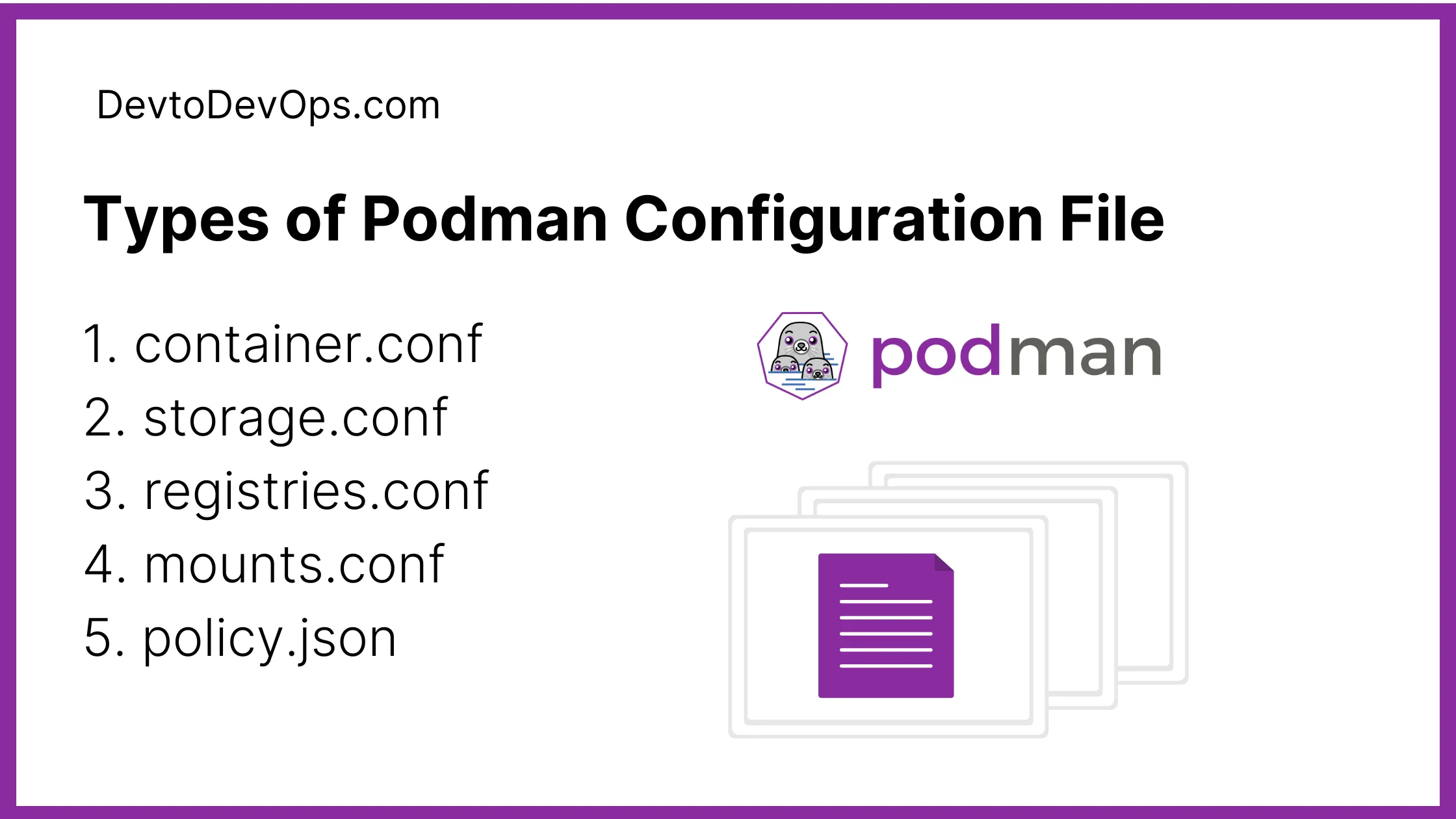
Types of Podman Container Configuration File
1. container.conf
File Location: /usr/share/containers/containers.conf
You can configure and modify the container configurations such as network and security settings, resource constraints, image storage location, and registry information.
2. storage.conf
File Location: /etc/containers/storage.conf
You can configure the storage-related settings in this file such as the storage driver and options for storing the container image and layers.
3. registries.conf
File Location: /etc/containers/registries.conf
You can specify the container image-related settings such as various image registries and search registries. You can specify the private and public registry other than the default Docker Hub and use a short alias name.
4. mounts.conf
File Location: /usr/share/containers/mounts.conf
You can specify the default mount option that will be mounted when the container starts with the podman run and podman start command.
This is useful especially when you want to mount a default drive such as logs storage or a specific configuration directory inside all containers.
5. policy.json
File Location: /etc/containers/policy.json
You can use podman image trust the command to set the container image trust policy. Defining the policy.json your Podman setup allows you to set up the trust option that decides the container image that accepts and rejects the image.
{
  "default": [
    { "type": "accept" }
  ],
  "docker.io": [
    { "type": "signedBy", "keyPath": "/path/to/trusted_key.pub" }
  ]
}
FAQs
How can I see the current container configuration settings?
You can use the podman info command to view the current effective configuration that is applied. You can check further configurations in various locations.
Can I create custom configuration files for specific use cases?
Yes, you can create the custom configuration file with the .conf file as discussed location or you can create the project-specific configuration using the CONTAINERS_CONF environment variable
Where can I find more information about specific configuration options?
Podman documentation is the most reliable option to check all available options for the Podman.
You can check the info here: https://docs.podman.io/en/latest/

Kashyap Merai, a Certified Solution Architect and Public Cloud Specialist with over 8 years in IT. He helped startups in Real Estate, Media Streaming, and On-Demand industries launch successful public cloud projects.
Passionate about Space, Science, and Computers. He also mentors aspiring cloud engineers, shaping the industry's future.
Connect with him on LinkedIn to stay updated on cloud innovations.