Master Ansible yum localinstall: Ultimate Guide
How to use the Ansible yum localinstall command to automate the installation of the local RPM package directly from your filesystem for offline deployment.
Kashyap Merai / / ansible · 6 min read
Installing the software package can be challenging especially if the RPM package is customer-built or the system is restricted to the Internet.
In this blog, we will learn how to use the Ansible yum localinstall command to automate the installation of the local RPM package directly from your filesystem for offline deployment.
What is Ansible yum localinstall?
Ansible is a widely used powerful automation tool for configuration management, application deployment, and orchestrion. You can manage the Infrastructure with Terraform and configure it with the Ansible.
Ansible can automate tasks like configuration management and package installation across multiple systems. Linux systems such as CentOS and Fedora use the Yum ( Yellowdog Updater Modified ) package manager: easy to use, install and update the software packages.
When you run the yum install package it will check the mentioned software package and install it in the system, but there may be a case where you don’t have the internet or an air-gapped system where the outside connection is not allowed.
How can we install the software package where the internet connection is not allowed for security reasons?
One possible option is to use the Ansible yum localinstall, a powerful command to install the local RPM package ( .rpm package ) from your filesystem instead of downloading from the remote repository.
When you use this with Ansible, you can automate the installation of packages from your filesystem, making it ideal for deploying custom-built RPMs or offline installations.
Let’s understand how to use the Ansible yum localinstall to automate package management.
Setting Up Ansible for yum localinstall
1. Installing Ansible on Your System
Before using yum with Ansible, you need to install Ansible on your system.
Here’s how to install it on some common distributions:
On RHEL/CentOS/Fedora
sudo yum install epel-release
sudo yum install ansible
On Ubuntu/Debian
sudo apt update
sudo apt install ansible
2. Configuring Ansible to Use Yum
Once the Ansible is installed, it’s important to configure your Ansible Inventory file to manage the target host where the package will be installed.
Let’s create or modify the /etc/ansible.hosts file with the IPs or hostname of the system you want to run the Ansible yum localinstall
[offline-target-ip]
10.0.0.5
10.0.0.6

[offline-target-hostname]
web.server.local
app.server.local
Now the Ansible is installed and inventory is in place, let’s install the RPM package.
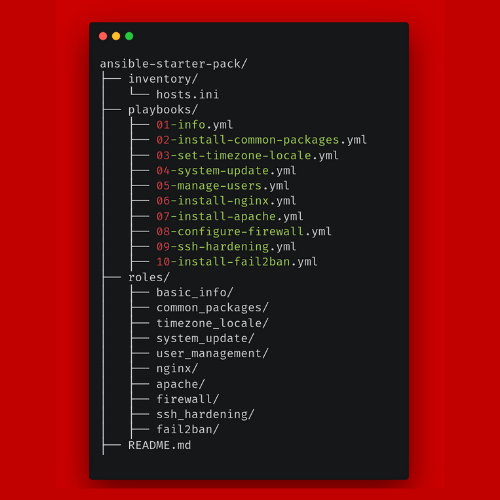
Automate Your Server Setup in Minutes
Get 10 ready-to-use Ansible playbooks and start saving hours today.
How to Use Ansible yum localinstall for Single RPM Packages
Ansible yum module can be used to install a single RPM package located on your system.
How to Use Ansible Without Root Access: Ultimate Guide
You can write an Ansible playbook using the yum module the name parameter pointing to the file path of the package.
Here’s a simple example of how to install a local RPM package using Ansible:
- name: Install Local RPM Package
  hosts: offline-target-ip
  tasks:
    - name: Install package
      yum:
        name: /path/to/custom.rpm
        state: present
hosts: offline-target-ip: Applies the task to [offline-target-ip] hosts in the inventory.name: /path/to/custom.rpm: Refers to the local path where the RPM is stored.state: present: Ensures the package is installed.
This playbook informs Ansible to install the local RPM file on all specified hosts. The state present ensures the package is installed only if it’s not already on the system.
Let’s verify the installed package while running the Ansible playbook.
Verifying Package Installation with Ansible
Once the package is installed, you can add another task to verify the installation. This can be done using the yum module to check if the package is installed:
Here’s a simple example of how to verify the installed RPM package:
- name: Verify package installation
  yum:
    name: package-name
    state: installed
Putting it all together in the same playbook:
- name: Install Local RPM Package
  hosts: offline-target-ip
  tasks:
    - name: Install package
      yum:
        name: /path/to/custom.rpm
        state: present

- name: Verify package installation
  yum:
    name: package-name
    state: installed
This way you can ensure that the local RPM package is installed and verified.
Installing Multiple Packages with Ansible yum localinstall
So far we’ve learned how to use Ansible yum localinstall for Single RPM but you may need to install multiple RPM packages.
Ansible allows you to install multiple packages by passing a list of RPM file paths.
Here’s how you can install multiple local RPMs in one go:
- name: Install Multiple Local RPM Packages
  hosts: offline-target-ip
  tasks:
    - name: Install packages
      yum:
        name:
          - /path/to/custom_package1.rpm
          - /path/to/custom_package2.rpm
        state: present
Handling Multiple Packages Efficiently
Ansible will automatically manage dependencies if you use the system’s package manager. This means if you install package X and it depends on Python or C++ library it will be installed without extra configuration
But when you use the Ansible yum local install, it performs completely offline installation and the dependencies tree is unavailable.
You have to ensure all required dependencies are installed or available.
Managing Dependencies for RPM Packages in Ansible
When using Ansible yum localinstall, handling dependencies becomes critical.
If the RPM package you’re installing has unmet dependencies, the installation will fail unless those dependencies are installed or included in the local repository.
To handle dependencies effectively, ensure the system knows about them:
Pre-installing dependencies: List the dependencies in the playbook and use Ansible to install them beforehand.
- name: Install dependencies
  yum:
    name:
      - dependency_1
      - dependency_2
    state: present
Using a local repository: Creating a local yum repository with all required packages can simplify the process for offline systems.
Best Practices for Using Ansible with yum localinstall
1. Using Local Repositories for Efficient Package Management
Instead of manually installing each RPM file, you can set up a local yum repository. A local yum repository is the same as a remote but instead of going to the internet, it will be used in the local system.
Once set up, Ansible can install packages from this repository just as it would from any other source:
- name: Install package from local repo
  yum:
    name: package-name
    state: present
This way, your Ansible playbooks become much more efficient, especially where multiple systems require the same packages.
Consider this as you have the local yum repository that can be used by all DEV/STG or Production environments.
2. Security Considerations for RPM Package Management
Ensure that the RPM packages you install are verified for authenticity. Since the package you install is offline and not from the official source, you should be careful with the security implications.
You can add a task to verify RPM signatures before installing them:
- name: Verify RPM signature
  command: rpm --checksig /path/to/package.rpm
This ensures that only signed and trusted packages are installed, improving the security of your systems.
How to Use Ansible Without Root Access: Ultimate Guide
Conclusion
Ansible automates the task efficiently by installing single or multiple RPM packages.
Using the Ansible yum localinstall simplifies the installation of local RPM packages across systems.
Following best practices like using local repositories and verifying package signatures for safe and secure deployment.
By mastering yum localinstall with Ansible, you can automate package installations saving time and reducing errors in administration tasks.
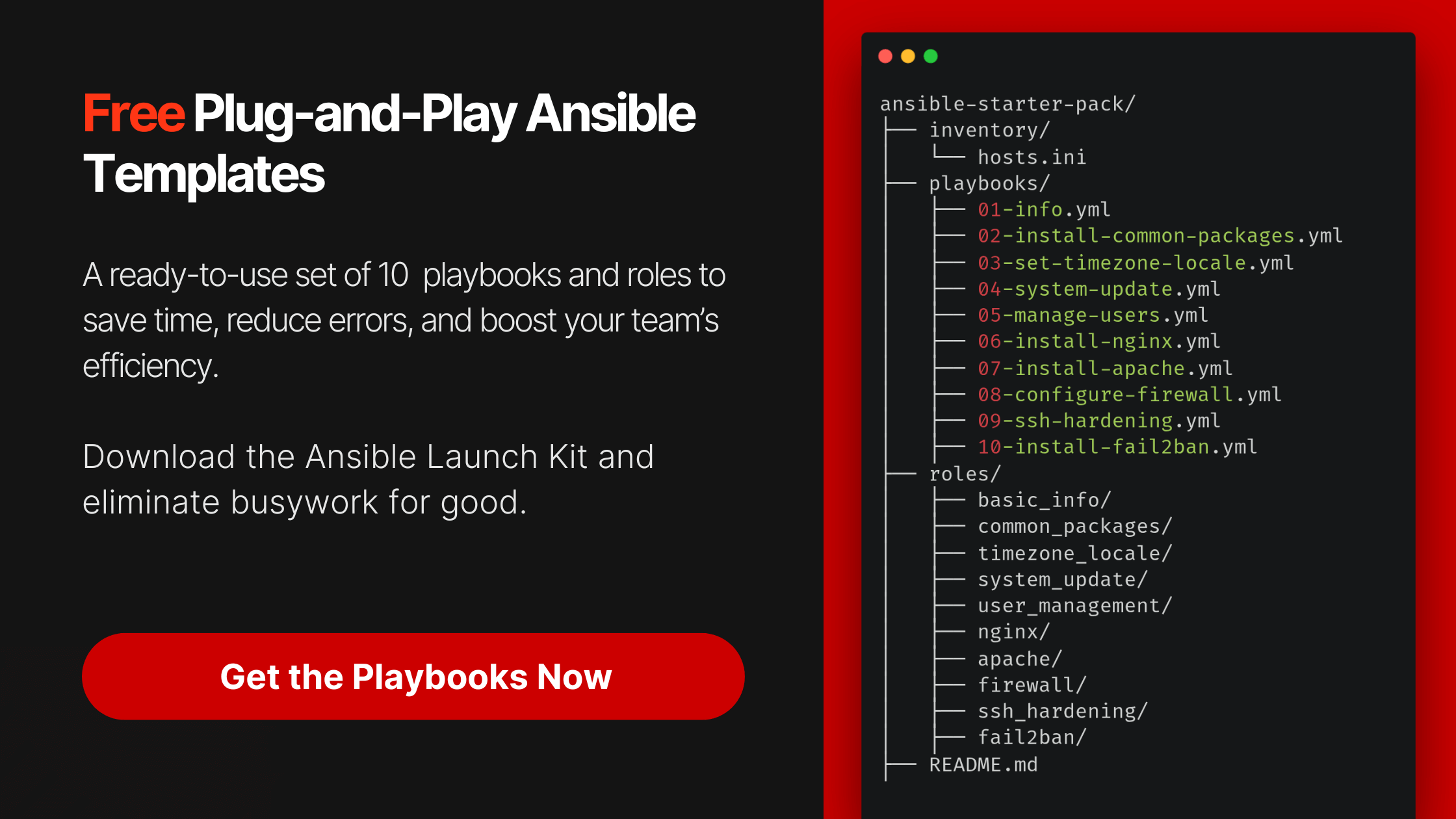
Grab the Free Ansible Starter Pack
Stop wasting time on server setup. Automate everything in minutes.

Kashyap Merai, a Certified Solution Architect and Public Cloud Specialist with over 8 years in IT. He helped startups in Real Estate, Media Streaming, and On-Demand industries launch successful public cloud projects.
Passionate about Space, Science, and Computers. He also mentors aspiring cloud engineers, shaping the industry's future.
Connect with him on LinkedIn to stay updated on cloud innovations.