Docker Compose Network Name Without Prefix - 3 Easy Tricks
Docker Compose can run multi-container applications easily. Let's check how you can override the Docker Compose network name without prefix with 3 easy tricks.
Kashyap Merai / / docker · 4 min read
Docker Compose is an important feature for running multi-container applications. Docker Compose simplifies the process of managing the entire application stack, volumes, and network. Write the comprehensive YAML and run a single command to run all services.
Let’s check how you can override the Docker Compose network name without prefix with 3 easy tricks.
How Docker Compose Network Name Works?
Writing the YAML for your Docker Compose sets up the single network for the entire stack. When the service starts running each container joins the same network.
The interesting thing is when this whole stack is up and running all the containers can connect and discover by the service name, which means you don’t have to remember the IP address.
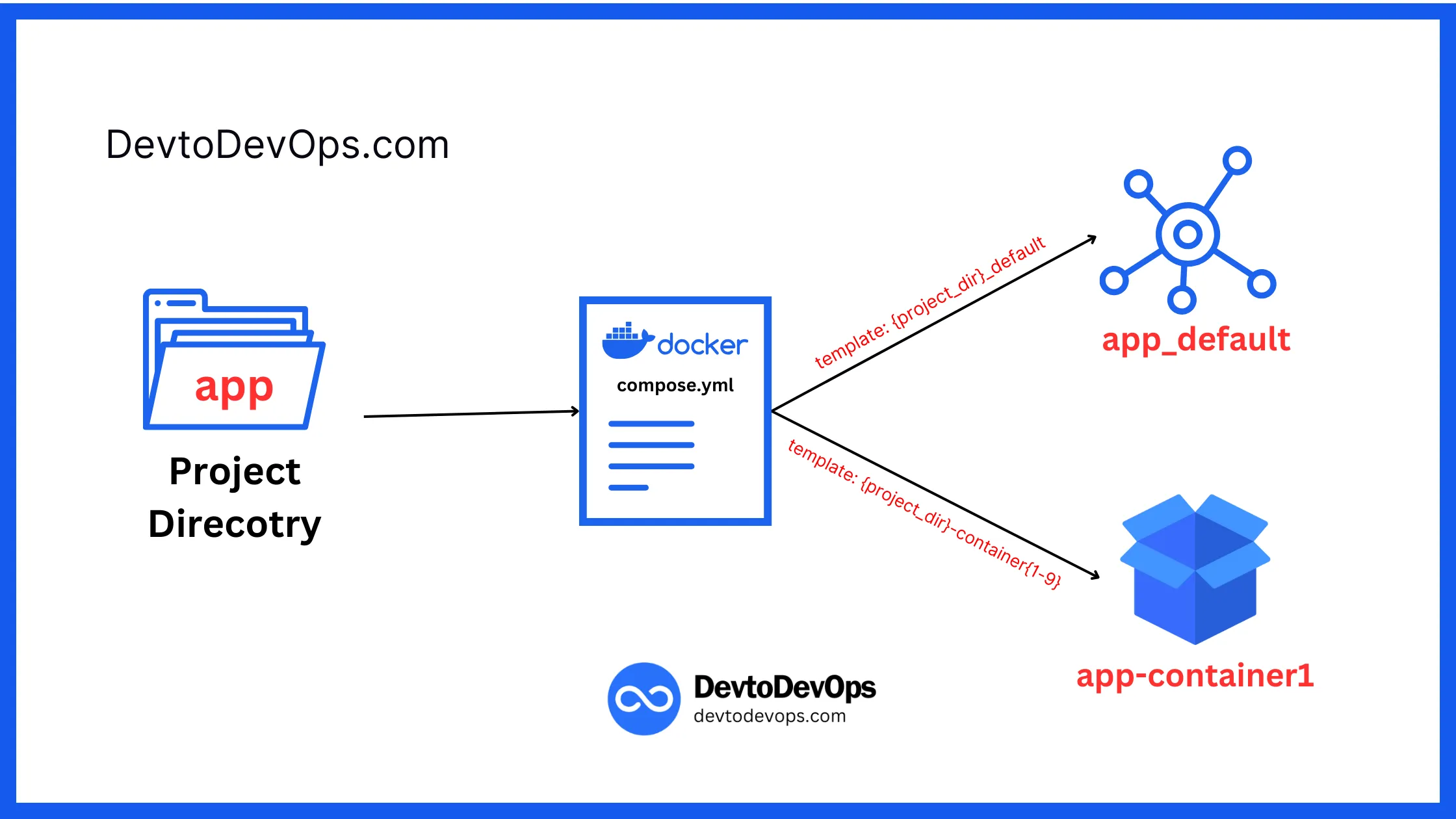
Docker Compose gives a network name based on the “project”, which is based on the current directory the compose.yml is on.
You can learn more about Docker Network:
 Docker Compose Network Name Without Prefix

Docker Security Checklist + Guide
Practical, proven strategies to secure your containers like a pro - in under 20 minutes.
Practical: Docker Compose Network Name Without Prefix
Let’s say you have all the project code under the directory name app then,
- Docker Compose will prefix the network name
app_default - All the containers will have the prefix
app-{SERVICE_NAME}
Let’s run the simple WordPress setup with the following compose.yml in app directory:
version: '3.8'

services:
  wp:
    image: wordpress:latest
    ports:
      - '8080:80'
    environment:
      WORDPRESS_DB_HOST: db
      WORDPRESS_DB_NAME: wordpress
      WORDPRESS_DB_USER: dummy
      WORDPRESS_DB_PASSWORD: dummy

  db:
    image: mysql:latest
    environment:
      MYSQL_DATABASE: wordpress
      MYSQL_USER: dummy
      MYSQL_PASSWORD: dummy
      MYSQL_RANDOM_ROOT_PASSWORD: 'yes'
Let’s run the docker compose up to understand the flow:
docker compose up -d

[+] Building 0.0s (0/0)                                               docker:default
[+] Running 3/3

✔ Network     app_default   Created                                            0.1s
✔ Container   app-wp-1      Started                                            0.1s
✔ Container   app-db-1      Started                                            0.1s
From the output, you can see:
- A network is created with
appname - A container called app-wp-1 was created and joined the network
appwithwpname - A container called
app-db-1was created and joined the networkappwithdbname
If you notice here under service wp the environment variable WORDPRESS_DB_HOST is using db as host for the database. Since both containers join the same network they can connect to the service name with db and wp
Master Docker Security - Without the Guesswork
Get the exact steps top engineers use to secure production containers. 100% free.
Make Docker Compose Network Name Without Prefix
Project names must contain only lowercase letters, decimal digits, dashes, and underscores, and must begin with a lowercase letter or decimal digit.
1. Use —project-name Flag
Docker Compose provides the extra flag for passing the project name. You can use the --project-name shorthand -p flag with the project name.
Let’s run the Docker Compose with the passing project name flag:
docker compose -p myproject up -d

[+] Building 0.0s (0/0)                                               docker:default
[+] Running 3/3

✔ Network     myproject_default   Created                                      0.1s
✔ Container   myproject-wp-1      Started                                      0.1s
✔ Container   myproject-db-1      Started                                      0.1s
2. Use COMPOSE_PROJECT_NAME Env Variable
Passing the additional flag might be troublesome and easy to forget when running the Docker Compose.
Another method for modifying the Docker Compose network prefix is using the COMPOSE_PROJECT_NAME environment variable, this is helpful, especially with CI/CD.
Let’s first export the environment variable and then run Docker Compose:
# Set the Environment Variable
export COMPOSE_PROJECT_NAME=envproject

# Run the docker compose
docker compose up -d

[+] Building 0.0s (0/0)                                               docker:default
[+] Running 3/3

✔ Network     envproject_default   Created                                    0.1s
✔ Container   envproject-wp-1      Started                                    0.1s
✔ Container   envproject-db-1      Started                                    0.1s
3. Use External Network
You can create the Docker network outside the Docker Compose and use it inside the compose.yml file. Using the external network you can run Docker Compose network name without prefix.
1. Create the docker network named external_net
# Create docker network
docker network create external_net
2. Modify the compose.yml and add a network section with external: true
version: '3.8'

services:
  wp:
    image: wordpress:latest
    networks: external_net
    ports:
      - '8080:80'
    environment:
      WORDPRESS_DB_HOST: db
      WORDPRESS_DB_NAME: wordpress
      WORDPRESS_DB_USER: dummy
      WORDPRESS_DB_PASSWORD: dummy

  db:
    image: mysql:latest
    networks: external_net
    environment:
      MYSQL_DATABASE: wordpress
      MYSQL_USER: dummy
      MYSQL_PASSWORD: dummy
      MYSQL_RANDOM_ROOT_PASSWORD: 'yes'

networks:
  external_net:
    name: external_net
    external: true
Above Docker compose will not create any default network but attach the mentioned service under the one already created.
external: true inform the Docker Compose to attach to the existing network rather than create one. If you omit then Docker Compose will create the default network.
Conclusion
In this blog, we understand how the Docker Comose network works with the practical example of running the WordPress and MYSQL databases. Containers in the same compose.yml attach to the same network and can communicate with a direct service name.
After that, we understand 3 simple tricks to make Docker Compose network name without prefix. Well, choosing the one method depends on the individual project requirements.
If you’re looking for how to make your Docker container secure, check out the Docker Container Security Cheatsheet and don’t get hacked🔐


Kashyap Merai, a Certified Solution Architect and Public Cloud Specialist with over 8 years in IT. He helped startups in Real Estate, Media Streaming, and On-Demand industries launch successful public cloud projects.
Passionate about Space, Science, and Computers. He also mentors aspiring cloud engineers, shaping the industry's future.
Connect with him on LinkedIn to stay updated on cloud innovations.