How to Change Podman Storage Location – 3 Easy Methods
Learn how to change the Podman storage location with detailed instructions, best practices, and troubleshooting tips. Optimize your container storage today
Kashyap Merai / / podman · 5 min read
Podman is a powerful container engine that manages and runs the container workload. Podman uses the container image and the storage for running containers and management for the Podman storage is crucial.
Let’s understand the “Change Podman Storage Location” in the blog to simply the Podman storage and customizing for your requirement in easy methods with troubleshooting.
Understanding Podman Storage
Podman uses the configuration file to manage the various aspects of the container lifecycle and allows you to modify the settings that fit your needs.
Podman Storage Configuration File
Podman utilizes the storage.conf file to manage the storage-related configuration on the below location:
/etc/containers/storage.conf$HOME/.config/containers/storage.conf
You can check the storage.conf to check the default storage location:
[storage]
driver = "overlay"
runroot = "/run/containers/storage"
graphroot = "/var/lib/containers/storage"
By default, Podman stores images in:
/var/lib/containersfor the root users$HOME/.local/share/containers/storage/for the standard users
Why Change Podman Storage Location?
In most common cases you don’t need to change the Podman storage location but there are several reasons to modify the Podman storage:
1. Limited Disk Space Issue
This can be troublesome if you run out of space and get the error “No Space Left On Device” and it’s not only related to Podman but Docker users also face a similar issue. I wrote about the fix if you’re already facing the issue:
A better way to fix this is to allocate more storage capacity or change the Podman storage location.
2. Performance Optimization
We have fast and slow storage such as SSD and HDD with various pros and cons. Sometimes the application needs faster storage options and high I/O ( Input/Output ) performance and SSD is the best choice for the requirement.
Container applications such as Databases or Kafka can get greater performance optimization by using faster storage options.
You can fix this by changing the Podman storage location and strategically planning to use faster storage ( SSD ) for critical and HDD for normal applications.

Step-by-Step Guide to Configure Podman Storage
Podman offers the three main ways to manage and change Podman storage location:
1. System-Wide Change Podman Storage Location
This approach is a more general and system-wide modification of the Podman storage location.
If you’re the administrator of the system you can follow the guide:
- Edit the file
/usr/share/containers/storage.conf storage.confuse the TOML style configuration syntax, locate the entries forrunrootandgraphroot- Update the values with the new storage location.
vi /usr/share/containers/storage.conf

---
[storage]
driver = "overlay"
runroot = "/run/containers/storage"
graphroot = "/var/lib/containers/storage"
---
TIP
After you update the graphroot value, you need to add the SELinux labeling to make it work, please check the official documentation if you face the issue.
Here’s how to do that:
semanage fcontext -a -e /var/lib/containers/storage /path/to/new/storage
restorecon -R -v /path/to/new/storage
2. User-Specific Change Podman Storage Location
If want to keep the system-wide Podman configuration unaffected and only change for the specific user, this approach is right for you. You can create the user-specific configuration to change the Podman storage location:
- Create the file under the location
~/.config/containers/storage.confto yourHOMEDIR - You can also copy the system-wide configuration and later modify the same.
- Add the
runrootandgraphrootentries for the storage section
mkdir -p ~/.config/containers/

cp /usr/share/containers/storage.conf ~/.config/containers/storage.conf

---
[storage]
driver = "overlay"
runroot = "/run/user/$UID/run"
graphroot = "/path/to/new/storage"
---
3. Environment Variable Way
Podman supports the environment variable to override the default Podman storage configuration. You can create the project-specific storage.conf and set the value for the CONTAINERS_STORAGE_CONF and Podman uses the configuration from the variable rather than default.
export CONTAINERS_STORAGE_CONF=/path/to/new/stroage.confUnderstand that you still need to create the storage.conf file with the new path for the Podman storage location. Environment variables prevent the changes to system-wide or user-specific changes to Podman.
IMPORTANT NOTE
Modifying the Podman storage configuration will not migrate the content such as containers and image data. You need additional steps to migrate that.

Only Podman CheatSheet You'll Actually Use
Get the essential commands to manage containers faster - zero fluff, 100% useful.
How to Migrate Existing Podman Storage Location?
Migrating the existing storage data can be tricky so I strongly advise you to take a backup of your data before moving them. Once you take the backup in a safe place you can either use the podman volume import/export or bind mount method.
How to Verify the Change Podman Storage Location
Once everything is in place it’s time to test and verify the changes. You can quickly verify the active configuration with a simple podman info command:
podman infoOnce you run the above command Podman will give detailed output, look for the storage-related configuration from here you can verify if the configuration is changed successfully.
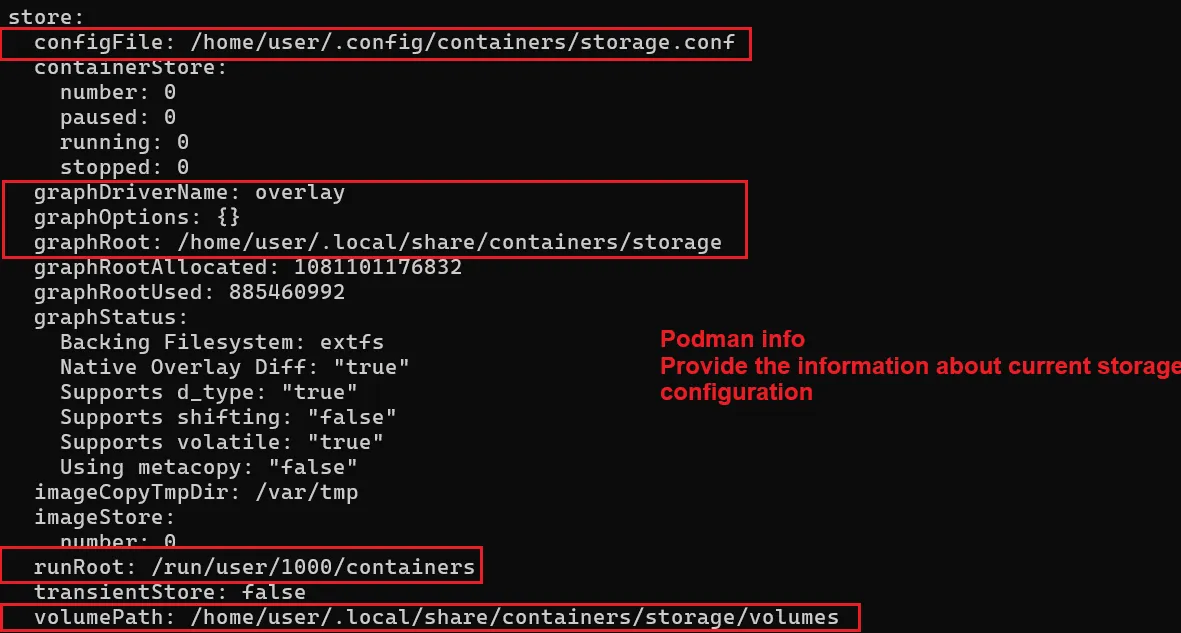
Change Podman Storage Location - podman info
If you encounter an issue while running the container after changing the Podman storage location check the common troubleshooting guide.
Common Errors and Troubleshooting
I changed the storage location, but it’s not using the new directories
- Double-check the configuration file that it’s modified and location is correct:**
- /etc/containers/storage.conf for system-wide changes
- ~/.config/containers/storage.conf for user-specific
- Verify the path you specified in the configuration exists and accessible by Podman**
- Restart the Podman to check the changes take effect.
After modifying storage locations, I’m facing permission errors
Verify the Podman has the necessary permission to access the storage, if needed adjust the permission with chown chmod commands.
If you updated the graphroot settings you need to update the SELinux label, check the guide mentioned in the blog for adding that.
How can I revert to the default storage locations if something goes wrong?
Revert is simple, modify the system-wide or the user-specific stroage.conf file and update the graphroot and runroot value to the default one.
I advise you to take a backup of the configuration file before any modification. That way, you can easily restore it if something goes wrong.
Additional Links
Podman Container Configuration File: 5 Hidden Hacks
Podman Pull Docker Image: Easier Than You Think!
Podman Container Image Update: Secure them in Seconds!
Stop Googling Podman Commands
Grab the cheat sheet that gives you the right commands, right when you need them.

Kashyap Merai, a Certified Solution Architect and Public Cloud Specialist with over 8 years in IT. He helped startups in Real Estate, Media Streaming, and On-Demand industries launch successful public cloud projects.
Passionate about Space, Science, and Computers. He also mentors aspiring cloud engineers, shaping the industry's future.
Connect with him on LinkedIn to stay updated on cloud innovations.