Podman Build from Dockerfile: Made Easy
This blog is a step-by-step guide for Podman build from Dockerfile directly from your existing code. Learn how to use Podman as a secure and lightweight
Kashyap Merai / / podman · 7 min read
This blog is a step-by-step guide for Podman build from Dockerfile directly from your existing code. Learn how to use Podman as a secure and lightweight alternative and keep your workflow the same as Docker.
Reusing the existing Dockerfile with Podman improved the security and efficient container management without major changes.
Why Use Podman Build from Dockerfiles?
Podman is a lightweight and secure alternative to Docker, but at the same time, there must be minimal changes and compatibility needed for an easy transition between Podman and Docker.
Let’s explore the key advantages of using Podman build from Dockerfile:
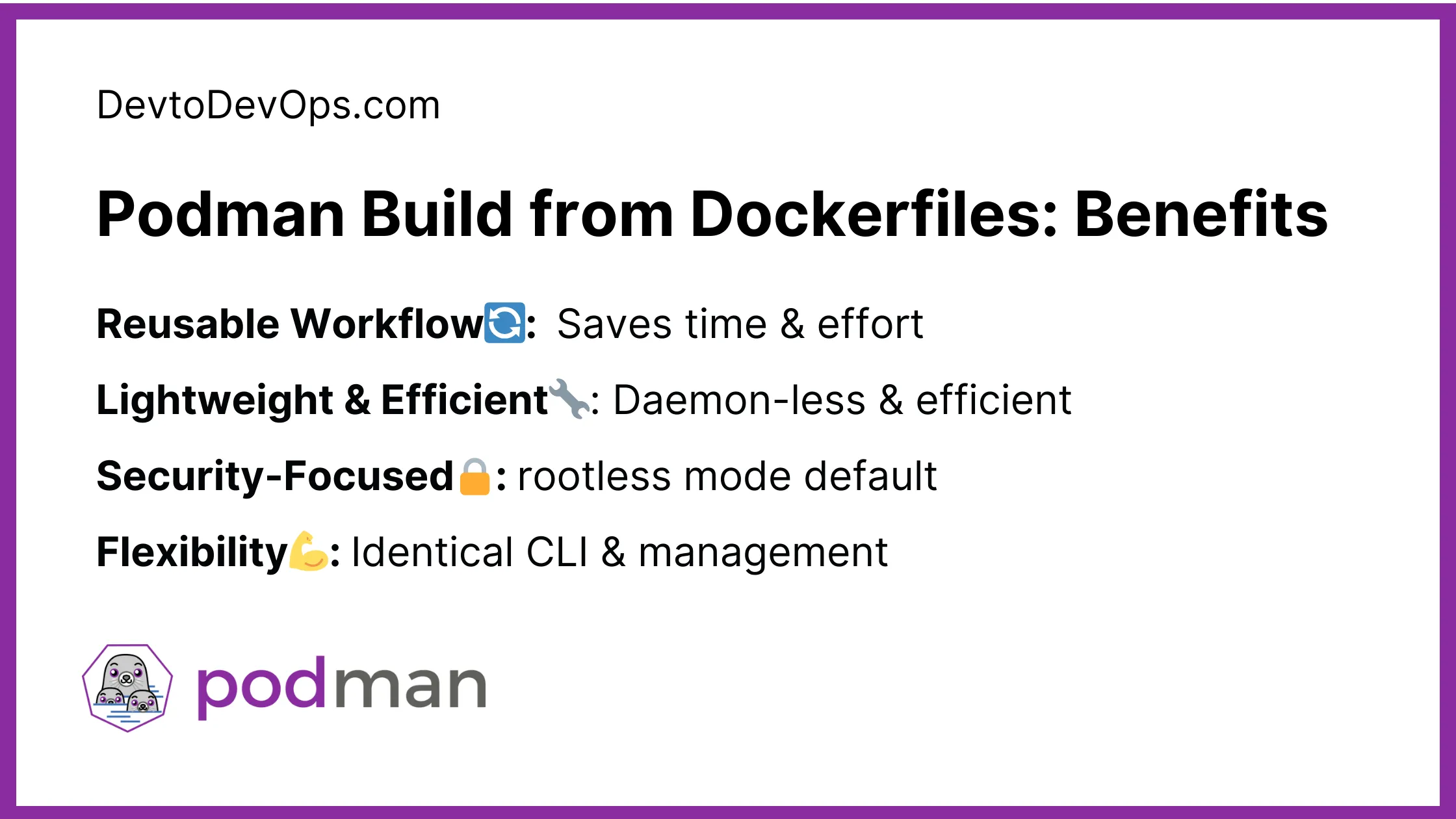
Podman Build from Dockerfiles Benefits
Reusable Workflow
Podman provides out-of-the-box support for the Docker Ecosystem. Podman is compatible with the Dockerfile, you don’t have to modify syntax or structure. This allows you to use the existing Dockerfile without changing your workflow and CI/CD process.
Reusable workflow saves time and effort when you move from Docker to Podman.
Podman vs Docker: Choose the Right One
Lightweight & Efficient
Docker and Podman follow different architectures. Podman utilizes the daemon-less architecture opposite Docker, which operates the centrally managed Docker daemon to manage the containers.
This means the Docker daemon should be running to keep the container running.
By default, if the Docker daemon crashes it terminates all the running containers due to its daemon-based architecture.Podman daemon-less design is more efficient for resource usage and makes it lightweight compared to Docker.
Security-Focused
Both Podman and Docker implemented the rootless mode for running containers. Podman runs the container as a non-root user by default, provides the native integration with SELinux, and secures default settings.
Running applications inside the container will not protect against crucial security vulnerabilities but using Podman provides the best default security settings to harden the containerized environment.
Flexibility
Podman and Docker can be used as a standalone container management platform. Switching between them is quick and easy, thanks to Podman, which provides identical CLI and management similar to Docker.
This provides the flexibility for choosing the tools that suit your project without worrying about interoperability.
Stop Googling Podman Commands
Grab the cheat sheet that gives you the right commands, right when you need them.
Getting Started with Podman Build from Dockerfile
Now you know the benefits of Podman build from Dockerfile, let’s check the steps for using it with the Podman.
Prerequisites
Before starting, ensure you have the latest Podman installed on your system. If you need help with Podman installation you can check the official Podman documentation for the specific instruction.
https://podman.io/docs/installation
If you want to build the Podman from the source you can check the below guide:
Build Podman from Source: 5 Easy Steps
Dockerfile vs Containerfile
Dockerfile is native to the Docker ecosystem and, a term used with Docker that is platform-specific.
Cloud Native Computing Foundation - CNFC defines the standard naming for the containerization application called the Containerfile, this is more generic and standard for platforms other than Docker.
Essentially, Containerfile use the identical syntax as Dockerfile. With Podman you can use a filename either Containerfile or Dockerfile.
Basic Podman Build Command
The command for building and image with Podman is podman build
podman build [OPTIONS] <context> [--tag <image_name>:<tag>]Let’s understand the command:
podman build: This will start the build process with Podman- [OPTIONS]`: You can specify the various options for the build process.
<context>: By default, the current directory is the context directory. You can specify the other than current.- [—tag`]: Optional but you can tag the specific version for better management.
For example, you can build the below Dockerfile for the simple Python app:
# Use Python as base for Podman Build from Dockerfiles
FROM python:3.9

# Set the working directory in the container
WORKDIR /app

# Copy the current directory contents into the container at /app
COPY . /app

# Install any needed dependencies specified in requirements.txt
RUN pip install --no-cache-dir -r requirements.txt

# Make port 80 available to the world outside this container
EXPOSE 80

# Define environment variable
ENV NAME World

# Run app.py when the container launches
CMD ["python", "app.py"]
if your Dockerfile is inside the directory named “podman-build-dockerfile”, you can run the below command to build the image:
podman build -t python-app:latest .You can verify the tagged image:
podman image ls

REPOSITORY             TAG      IMAGE ID       CREATED        SIZE
python                 3.9      b3ff343f73ed   3 days ago     876MB
python-app             latest   8fce1de157c7   1 days ago     978MB
Specifying Dockerfile Location
You can specify the Dockerfile location with the context argument in the podman build command using the -f option:
podman build -f /path/to/DockerfileIf you don’t specify the explicit context directory and -f the option is used, Podman will use the parent directory of the Dockerfile as build context.
Podman Build from Dockerfile: Advanced Options
Podman provides advanced options for building your container images:
Multi-Stage Builds
Multi-stage builds are a powerful method for smaller and more efficient container images. You need to define the two or more Dockerfile:
Build Stage: You should build your application in this stage, installing dependencies and building the application binary or assets.
Runtime Stage: Since you build your application in the build stage, you can use the minimal image such as
alpineand run the binary.
Separating the build into multiple stages can reduce the final Docker image size and have a smaller footprint.
# Build Stage
FROM node:18-alpine AS builder

WORKDIR /app

COPY package*.json ./
RUN npm install

COPY . .
RUN npm run build

# Runtime Stage
FROM nginx:alpine

COPY --from=builder /app/build /usr/share/nginx/html

EXPOSE 80

CMD ["nginx", "-g", "daemon off;"]
In this example:
The first section defines the build stage with the Node.js environment and builds the application
The second section defines the runtime stage that takes reference from the “builder”
Copy the build artifact to the nginx directory
Let’s Podman build with Dockerfiles for multi-stage applications:
podman build -f Dockerfile -t multi-stg:latestOnce your Podman image is ready you can run with podman run and verify with Podman attaching to the running container.
Building from Remote URLs, Git, or archive
Podman supports building the images from the remote Dockerfile or Containerfile. You can use your remote Git environment or HTTP(S) URLs for building with Podman.
When you use the remote location, Podman will download the file or repository to a temporary location and use that as a build context.
Podman build from Dockerfiles from the HTTP(S) URL
Podman downloads the file to the temporary temporary location and uses it as a build context
podman build https://192.168.0.12/podman-remote/ContainerfilePodman build from Dockerfiles from the remote Git repository
Podman clones the Git repository to the temporary location and uses it as a build context.
podman build -t podman-build-with-dockerfile  https://github.com/containers/PodmanHello.git

podman run podman-build-with-dockerfile
Podman build from Dockerfiles from the URL archive
Podman downloads the archive from the mentioned URL, decompresses it, and uses it as build context.
podman build -f prod/Containerfile https://192.168.0.12/podman-remote/context.tar.gzNote: Podman supports
xz,bzip2,gzipandidentityformat for the compression.
Only Podman CheatSheet You'll Actually Use
Get the essential commands to manage containers faster - zero fluff, 100% useful.
FAQs - Podman Build with Dockerfiles
Will Podman work with all Dockerfiles?
Yes, Podman understands the Dockerfile and syntax and allows you to reuse your Dockerfile without modification.
Are there any limitations compared to Docker Build?
Podman can’t support Docker Swarm builds, remote management, and a less mature ecosystem compared to Docker. However, the Podman build is compatible with the Dockerfile format.
Is Podman faster than Docker?
The performance difference is relatively small. Podman may have an advantage in for resource usage but Docker is more efficient in container creation and management.
Conclusion
You can use Docker and Podman in your project based on your needs. Podman provides the support for your existing Dockerfile, you can transition from Docker to Podman without major modifications to your workflow.
Podman support for the Docker syntax allows you to use the same Dockerfile without rewriting running as the standalone container or use Docker compose with Podman. We also learn about the basic and advanced methods with the Podman build with Dockerfile.

Kashyap Merai, a Certified Solution Architect and Public Cloud Specialist with over 8 years in IT. He helped startups in Real Estate, Media Streaming, and On-Demand industries launch successful public cloud projects.
Passionate about Space, Science, and Computers. He also mentors aspiring cloud engineers, shaping the industry's future.
Connect with him on LinkedIn to stay updated on cloud innovations.